Online Keyboard Shortcuts
OnlineShortcuts.com provides a comprehensive reference for essential Windows, MacOS, and Linux keyboard shortcuts to boost productivity.
Visit
About Online Keyboard Shortcuts
Online Keyboard Shortcuts, available at OnlineShortCuts.com, is a comprehensive, free, and ad-free reference guide dedicated to the most essential keyboard shortcuts for the three major operating systems: Windows, macOS, and Linux. The core purpose of this resource is to help users of all skill levels drastically improve their computing efficiency by reducing reliance on the mouse and memorizing key combinations for common tasks. A keyboard shortcut is a combination of keys that performs a specific action, allowing you to navigate your computer, manage files, and control applications with greater speed and fluidity. This website curates the most important shortcuts, organizing them into clear categories such as system-wide commands, operating system-specific keys (like the Windows Key), and application-specific shortcuts for tools like Command Prompt, File Explorer, and web browsers. The site is designed for anyone looking to work faster, from casual users who want to lock their screen quickly to power users who need to manage virtual desktops or snap windows into place. Beyond the core list, the product offers downloadable cheat sheets in PDF and PNG formats, ensuring you can access this valuable information even offline. The content is presented in a clean, distraction-free environment, making it a reliable and straightforward tool for boosting daily productivity.
Features of Online Keyboard Shortcuts
Comprehensive Operating System Coverage
This feature provides a curated list of the most important keyboard shortcuts for Windows, macOS, and Linux, all in one centralized location. Instead of searching through different help menus or online forums for each operating system, users can find a unified, easy-to-navigate reference. The shortcuts are organized by OS, with Windows further broken down into system-wide shortcuts, Windows Key-specific commands, and application-specific shortcuts. This structure allows users to quickly find the exact shortcut they need, whether they are a Windows power user looking for the Task Manager shortcut (Ctrl + Shift + Esc) or a Linux user needing a specific command. This comprehensive coverage ensures the tool is valuable for individuals who work across multiple platforms.
Downloadable Cheat Sheets
To enhance usability beyond the website, this feature offers users the ability to download the entire shortcut list as a handy PDF file or as PNG images in both dark and light modes. This is a significant value-add for users who want to have a physical reference or a quick-access image on their desktop. The PDF format is perfect for printing and pinning near a workstation, while the PNG images can be set as a wallpaper or saved for quick visual reference. This feature ensures that the productivity benefits of the shortcuts are not limited to when a user has an internet connection, making the knowledge portable and always accessible. The availability of both dark and light PNG themes also caters to different visual preferences and desktop setups.
Organised and Categorical Structure
The shortcuts on the site are not just a single, overwhelming list; they are intelligently organized into specific categories for quick navigation. The main categories include "Windows Systemwide Keyboard Shortcuts," "Windows Key Shortcuts," and "Application Specific Keyboard Shortcuts." This latter category is further broken down into sub-sections for Command Prompt, File Explorer, Text Editing, Virtual Desktops, and Web Browsers. This logical grouping allows users to focus on the area they need help with, whether it's mastering text editing commands like Ctrl + B for bold or learning to manage virtual desktops with Win + Ctrl + D. This structure dramatically reduces the time it takes to find a specific shortcut, making the learning process more efficient and less daunting.
Clear and Accessible Presentation
The website is designed with a focus on clarity and accessibility, ensuring that the information is easy to read and understand on any device. Each shortcut is displayed with a visual representation of the key combination (e.g., "Ctrl + C"), followed by a plain-language description of its function (e.g., "Copy selected text"). This straightforward presentation eliminates any confusion about which keys to press. Furthermore, the site is designed to be responsive, meaning it works seamlessly on mobile devices, tablets, and desktops. This ensures that users can access the reference guide wherever they are, whether they are at their desk or using a tablet on the go.
Use Cases of Online Keyboard Shortcuts
Boosting Daily Productivity for Office Workers
Office workers who spend their days writing documents, creating spreadsheets, and managing emails can dramatically increase their efficiency by mastering common shortcuts. Using Online Keyboard Shortcuts, they can quickly learn and reference text editing shortcuts like Ctrl + Z for undo, Ctrl + Y for redo, and Ctrl + F for find. They can also learn how to switch between open applications using Alt + Tab, snap windows for side-by-side comparison with Win + Left/Right Arrow, and manage the desktop with Win + D. By reducing the need to reach for the mouse for every single action, these shortcuts can save a significant amount of time over the course of a workday, leading to a noticeable boost in overall productivity.
Streamlining Workflow for Developers and IT Professionals
Developers and IT professionals often work in command-line interfaces and need to navigate complex systems rapidly. This website provides invaluable shortcuts for tools like Command Prompt, such as F7 to view command history. They can also benefit from system-level shortcuts like Ctrl + Shift + Esc to open Task Manager or Win + X to access the Power User menu for quick access to administrative tools. For those managing multiple projects, the virtual desktop shortcuts (Win + Ctrl + D to create, Win + Ctrl + Left/Right to switch) are essential for organizing different workspaces. Having a single, reliable reference for these shortcuts helps these professionals maintain a fast, keyboard-driven workflow.
Enhancing Accessibility for Users with Motor Impairments
For individuals who have difficulty using a mouse due to motor impairments or repetitive strain injuries, keyboard shortcuts are an essential accessibility tool. Online Keyboard Shortcuts provides a comprehensive guide to navigating a computer using only the keyboard. Users can learn to open the Start Menu (Ctrl + Esc), lock their screen (Win + L), open Settings (Win + I), and even copy and paste text without ever touching a mouse. This reduces physical strain and can make computing more comfortable and accessible. The downloadable cheat sheets are especially useful here, as they can be placed in a convenient location for quick reference without the need for additional mouse clicks to navigate the website.
Learning and Onboarding New Computer Users
New computer users, whether they are students, seniors, or professionals transitioning to a new operating system, can use this site as a structured learning tool. The clear categorization and simple descriptions make it easy to start with the basics, like learning how to select all text (Ctrl + A) or refresh a web page (Ctrl + R). The site acts as a self-paced tutorial, allowing users to gradually learn more complex shortcuts as they become comfortable. By providing a non-intimidating, ad-free environment, Online Keyboard Shortcuts helps new users build confidence and good habits from the start, setting them up for a more efficient and enjoyable computing experience.
Frequently Asked Questions
What is the difference between a system-wide shortcut and an application-specific shortcut?
A system-wide shortcut works across the entire operating system, regardless of which application is currently active. For example, Alt + Tab will always switch between open apps on Windows, and Win + L will always lock the screen. An application-specific shortcut only works within a particular program. For example, F7 is used to view command history in Command Prompt, but it will not perform that function in a web browser or a word processor. Understanding this distinction helps users know when and where a shortcut will be effective.
Are the keyboard shortcuts the same on Windows, macOS, and Linux?
No, the keyboard shortcuts are often different across the three operating systems. For instance, the shortcut to copy is typically Ctrl + C on Windows and Linux, but Command + C on macOS. The website addresses this by organizing all shortcuts into separate sections for Windows, macOS, and Linux. This ensures that users can quickly find the correct combination for the specific operating system they are using, preventing confusion and ensuring the shortcuts work as intended.
How can I download the keyboard shortcuts cheat sheet?
You can download the cheat sheet directly from the Online Keyboard Shortcuts website. On the main page, you will find a section with three download buttons. You can choose to download the entire list as a PDF file, which is ideal for printing. Alternatively, you can download a PNG image of the shortcuts in either a dark theme or a light theme, which is perfect for setting as your desktop wallpaper or saving for quick visual reference.
How often are the keyboard shortcuts on this website updated?
The website notes that updates are not made on a strict, regular schedule. The shortcuts are curated to be as accurate as possible for the specified software versions at the time of writing. However, because software updates can sometimes change or introduce new hotkeys, it is always a good practice to verify a shortcut with the specific version of the operating system or application you are running. The site serves as a comprehensive and valuable baseline reference guide.
Explore more in this category:
Similar to Online Keyboard Shortcuts
tallycounterweb.com
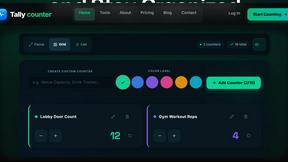
Tally Counter is a simple online counting tool for tracking attendance, workouts, inventory, sports scores, visitors, and everyday activities.

iHatePosting
Create once, tailor for each platform, and schedule posts across 14 social networks from one simple dashboard.
PDFWix
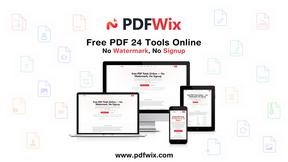
PDFWix is a free online PDF toolkit designed to make everyday PDF tasks simple, fast, and private.
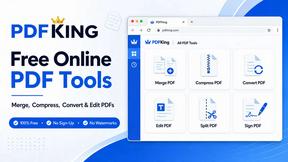
PDFKing
Free online PDF tools to merge, compress, convert, edit, sign, and manage documents—no signup, watermarks, or daily limits.